
Submitting an order in Gemini's Partner Portal is straightforward. You can place an order with or without pricing depending on your project. Choose the method below that best fits your workflow.
How to submit an order with pricingOnce you have finished entering the details of your quote, you can proceed to order whether you have received pricing or not.
Note: You will be unable to submit orders if the quotes are incomplete or are past the expiration period. To learn how to update an expired quote, view our article How to Update an Expired Quote.
- Log into Partner Portal.
- Click the Quotes tab at the top of the screen.

Note: In the Quotes tab, you can find your quote history. Quotes with a View Quote button are completed and eligible to be turned into orders. Those with a Finish Quote button are incomplete and cannot be turned into orders until finished.
- Click the white View Quote button to the right of the completed quote you want to turn into an order.

- To the right of the Reference Number, click the red Proceed to Order button to turn your quote into an order.

- Fill in the following fields on the order form:
- PO Number
- Shipping details
- Notes for the order
- Any art or files needed
- Click the red Place Order button at the bottom right under the Price Summary to submit your order.

- You will receive an on-screen confirmation that your order has been submitted. To track your order, use the Reference Number displayed under the Orders menu tab.
How to submit an order without pricing
To submit an order without pricing, follow the steps below.
Tip: This method is recommended if you are already familiar with Gemini's pricing. If you are not, we recommend requesting pricing before placing your order.
- Log into Partner Portal and create a quote by clicking either the red Start Here or Start a Quote button on the Dashboard.
Note: You can also convert a previously submitted quote that is waiting for an estimate. Go to the Quotes tab, click View Quote on the quote labeled Pending to open the Quote Progress page, then click the Proceed to Order button in the top right.

- Once your quote has been created, click Proceed to Order.

- Fill in your contact information, then submit your order by clicking the red Place Order button at the bottom right under the Price Summary.
Note: You will be unable to proceed to order if you have not filled in all required fields for your quote. Orders that are standard, custom, and with artwork are all eligible to be placed directly without pricing.

- You will receive an on-screen confirmation that your order has been submitted. To track your order, use the Reference Number displayed under the Orders menu tab.
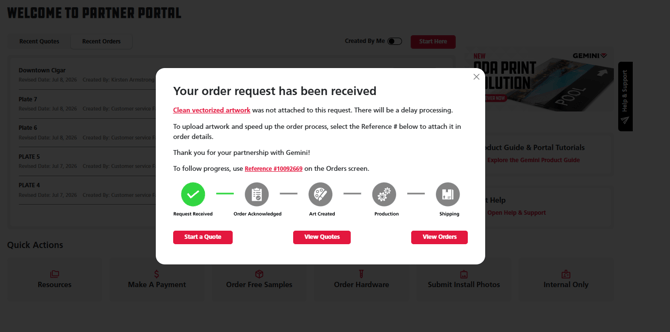
Tip: You can view the status of your orders by clicking on the Orders tab at the top of the screen.
If you have any questions or concerns about your orders, click the Start a New Message button with the black paper airplane icon on the Help & Support Panel at the right of the screen or directly on your order to contact your customer experience team.
6000.24

